Not every page on your website serves the same purpose.
Your homepage welcomes visitors. Your blog educates them. Your pricing page converts them. Your case studies build trust.
So why would you use the same widget on every page?
Now you don’t have to.
What’s New
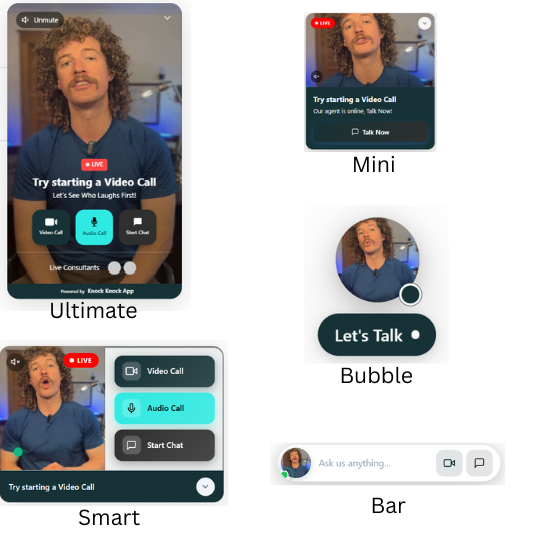
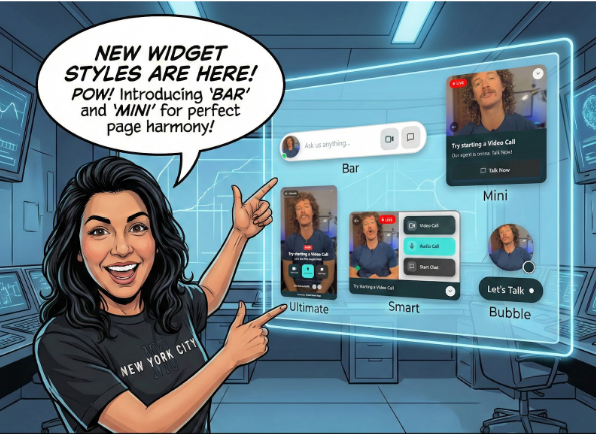
We’ve added two new widget styles to Knock Knock App, giving you four options to match your widget to your page.
Bar Widget
The sleekest option. Minimal footprint, maximum subtlety.
A slim bar that sits at the edge of the screen. It’s there when visitors need it, invisible when they don’t.
Perfect for:
- Blog posts where you want visitors to read first
- Content pages where engagement should feel optional
- Auto-trigger scenarios where you want a gentle nudge
- Sites with clean, minimal design aesthetics
The Bar Widget says: “I’m here if you need me” without shouting for attention.
Mini Widget
Not too big, not too small. Noticeable and stylish.
The ideal balance between presence and subtlety. Visitors see it. They know they can engage. But it doesn’t dominate the page.
Perfect for:
- Service pages where you want to invite conversation
- About pages where visitors might have questions
- Portfolio pages where you want to be available
- Any page where balanced visibility matters
The Mini Widget says: “Let’s talk when you’re ready.”
Why Multiple Styles Matter
Different pages serve different purposes. Your widget should adapt.
Pricing page? Visitors here are evaluating. They have questions. They’re close to a decision. Use a more prominent widget. Make it easy to connect.
Blog post? Visitors here want to read. They’re consuming content. A bold widget interrupts. Use the Bar Widget. Let them finish, then engage.
Homepage? First impressions matter. You want to be welcoming but not aggressive. The Mini Widget strikes the right balance.
Landing page from paid ads? These visitors came with intent. They clicked your ad. Match the widget to the offer. Be visible. Be ready.
One widget style across your entire site? That’s a missed opportunity. Now you can be intentional about every page.
Widget Positioning
Style is half the equation. Position is the other half.
You can now choose where your widget appears:
- Bottom right
- Bottom left
- Top right
- Top left
Match your widget position to your page layout. If your navigation is on the right, put the widget on the left. If your chat support is bottom right, put Knock Knock somewhere else.
Small details. Big impact on user experience.
The Four Widget Options
Here’s your complete toolkit:
| Widget Style | Footprint | Best For |
|---|---|---|
| Bar Widget | Minimal | Content pages, blogs, subtle auto-triggers |
| Mini Widget | Balanced | Service pages, portfolios, general use |
| Standard Widget | Visible | Pricing pages, high-intent landing pages |
| Full Widget | Prominent | Sales pages, demo requests, maximum engagement |
Mix and match across your site. Different widgets for different pages. All managed from one dashboard.
How To Set It Up
- Go to your widget settings in the Knock Knock dashboard
- Choose your style – Bar, Mini, Standard, or Full
- Select your position – Where on the screen it appears
- Assign to pages – Different widgets for different pages
- Save and publish – Changes go live instantly
No code changes. No developer needed. Just choose and deploy.
The Bottom Line
Your website isn’t one-size-fits-all. Your widget shouldn’t be either.
Now you have options. Subtle when you need subtle. Prominent when you need prominent. Positioned exactly where it works best.
Right widget. Right page. Right position.
Frequently Asked Questions
How many widget styles are available now? Four styles: Bar Widget (minimal), Mini Widget (balanced), Standard Widget (visible), and Full Widget (prominent).
Can I use different widgets on different pages? Yes. You can assign different widget styles to different pages. Use a subtle Bar Widget on your blog and a prominent Standard Widget on your pricing page.
What position options are available? Bottom right, bottom left, top right, and top left. Choose what works best with your page layout.
Do I need to add code for each widget? No. One installation covers your entire site. You configure which style appears on which pages from the dashboard.
Can I change widget styles after installation? Yes. Switch styles anytime from your dashboard. Changes go live instantly.
Does the widget style affect functionality? No. All widget styles have the same features: video, chat, voice, AI engagement. The only difference is visual appearance and footprint.
Which style is best for mobile? All styles are mobile-responsive. The Bar and Mini widgets work particularly well on mobile where screen space is limited.
Can I preview widgets before publishing? Yes. Preview each style in the dashboard before assigning it to pages.
New widget styles are live now for all Knock Knock users.

Anna Hyatt
Co-Founder | Knock Knock App
AI × Human Touch = Happier Clients, More Revenue
LinkedIn Profile